Rotate only the second page by 90 degrees
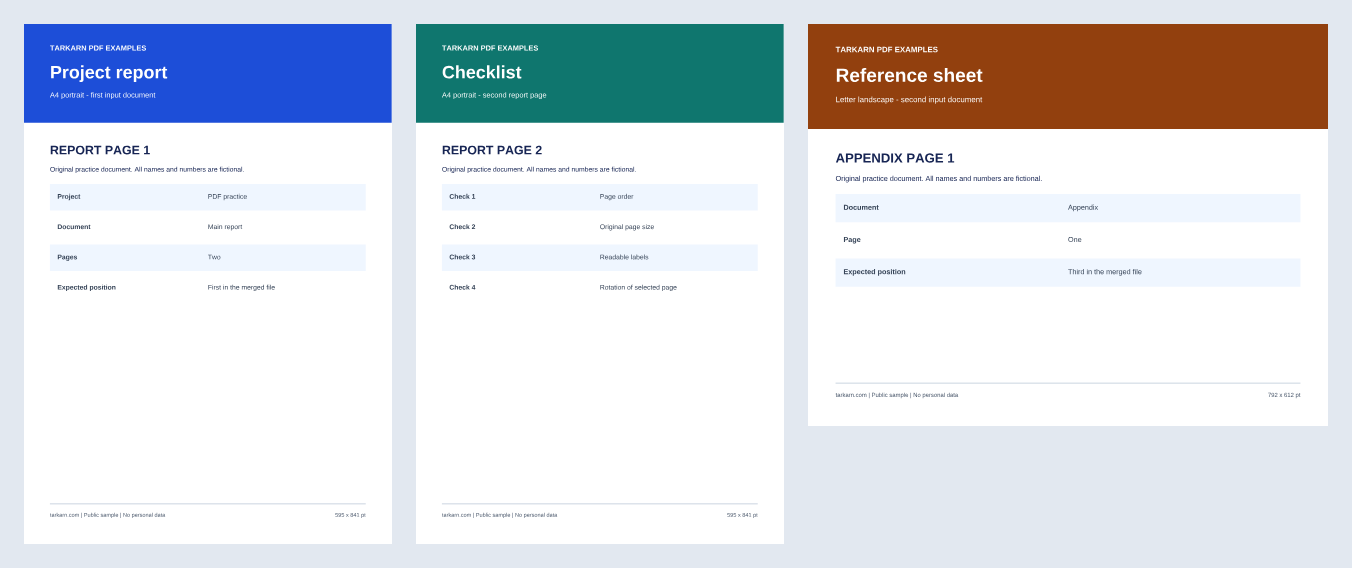
Practice changing the orientation of one page inside a document. Add 90 degrees to page 2 of merged.pdf while leaving pages 1 and 3 alone. The sample's second page starts upright, so the result turns it sideways. To correct a real sideways scan, inspect it and choose 90 or 270 degrees as needed.
1. Check the original orientation
Download three-page rotation input (PDF)
2. Apply rotation to page 2 only
- Select merged.pdf.
- Choose 90 degrees for page 2 without applying a whole-document rotation.
- Leave pages 1 and 3 at 0. This screen's angle is added to the original rotation.
- Apply the rotation and download the result.
3. Compare count, labels and orientation
Download reference page 2 rotation result (PDF)
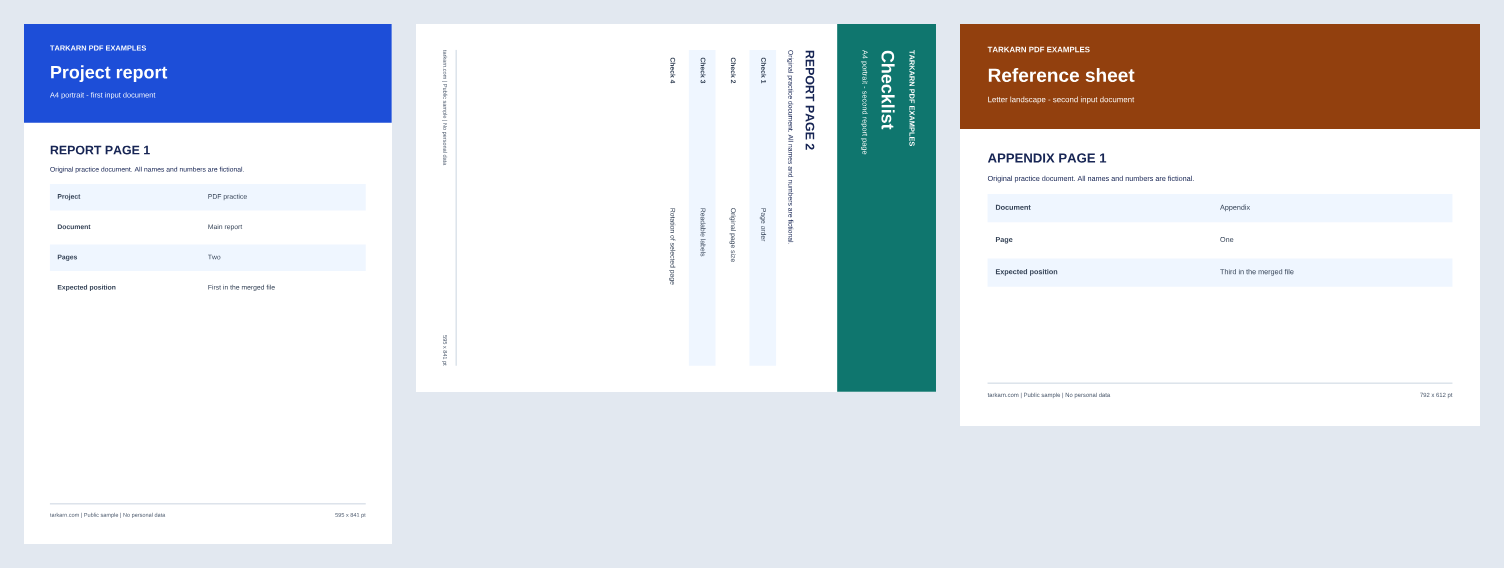
The result still has three pages ordered REPORT PAGE 1, REPORT PAGE 2, APPENDIX PAGE 1. Their rotations are 0, 90 and 0 degrees. Page 2 retains a 595.28 × 841.89 pt PDF MediaBox, but the viewer displays it in landscape orientation because of the rotation. Distinguish page dimensions from display orientation.
If other pages rotate too
Reopen the original and change only the page 2 control instead of rotating all pages. Adding another 90 degrees to the rotated output makes page 2's rotation 180 degrees. Rotation changes the whole page's display angle; it does not deskew a scan or edit its body text.
Before using your own document
This example uses unencrypted text PDFs. We have not verified preservation of encrypted or damaged files, digital signatures, form fields, bookmarks or accessibility tags in this case. Keep the original and check those features separately when they matter. This operation does not perform OCR or edit the body text of a scanned document.
Processing can fail depending on file size and available browser memory. If you see an error, open the original in a PDF viewer to check it rather than just renaming it. Practice with these non-personal samples, then check your real output in another PDF viewer before sharing it.
The previews below are renders of the supplied sample PDFs, not screenshots of the tool. They do not establish processing speed or file preservation across all browsers.